Salesforce Connection Guide
Last updated: March 12, 2026
This guide explains how to connect your Salesforce organization to Swyft.
Due to recent Salesforce security changes on 03/02/26, the Swyft OAuth app must be installed and approved by a Salesforce administrator before users in your organization can sign in with Salesforce.
Once the admin setup is complete, any user in your organization will be able to connect Salesforce to Swyft.
1. Install the Swyft Package - Salesforce Admin Required
A Salesforce administrator must install the Swyft OAuth package into the organization. An active Swyft seat is not required for the admin to complete this step.
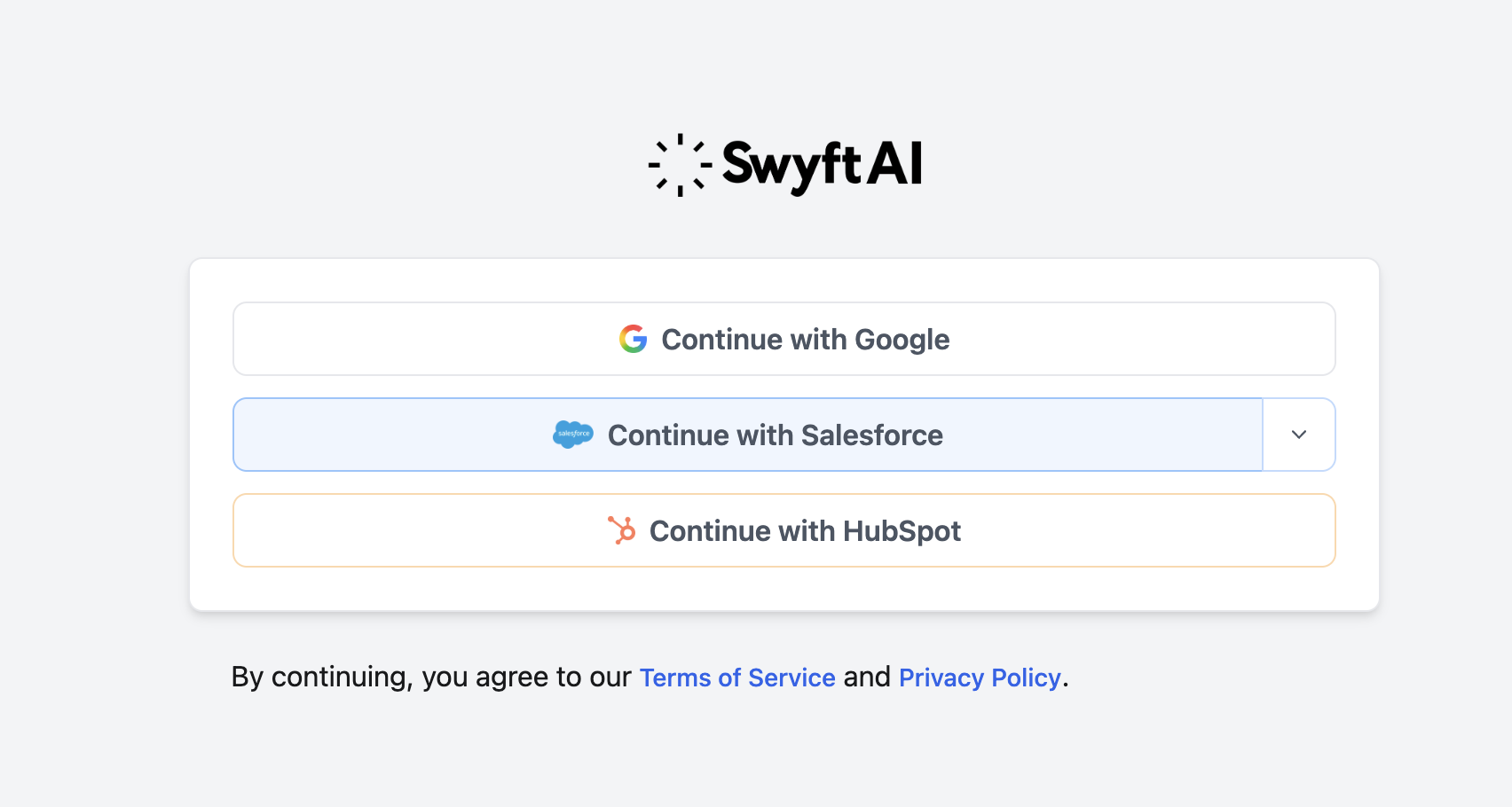
Navigate to the Swyft Login page and click Continue with Salesforce.
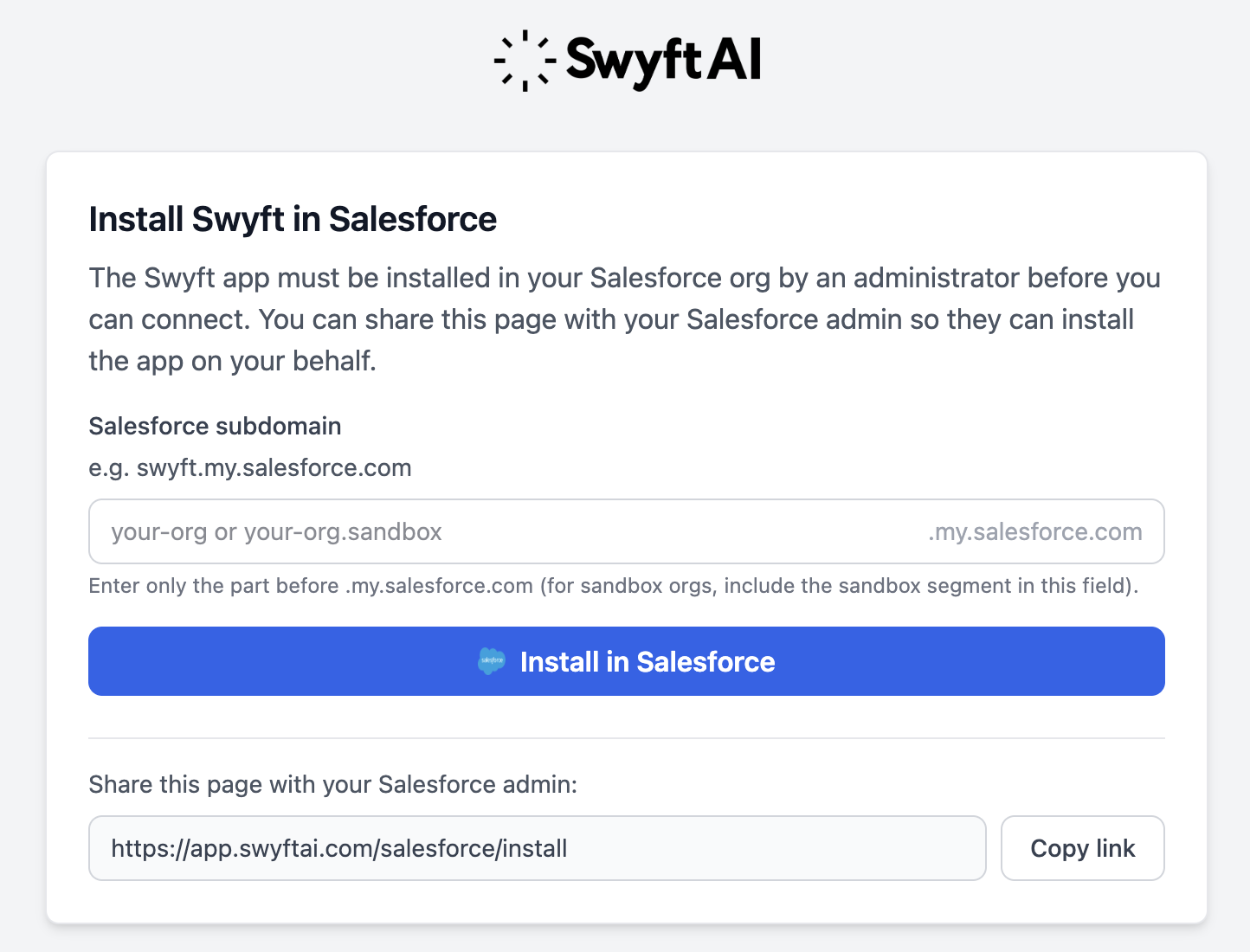
Upon validating that the package needs to be installed, the user will be redirected to the Swyft package install page where .my domain name of the Salesforce organization can be entered to start the install process.
During installation Salesforce will ask who should have access to the app.
Select one of the following options depending on your needs:
Install for All Users
Recommended for most organizations
Any user can connect Salesforce to Swyft
Install for Specific Profiles
Allows you to limit which users can connect Swyft
Users must have access if they will:
Connect Salesforce to Swyft
Run Swyft workflows that interact with Salesforce
Authorize Swyft to act on their behalf
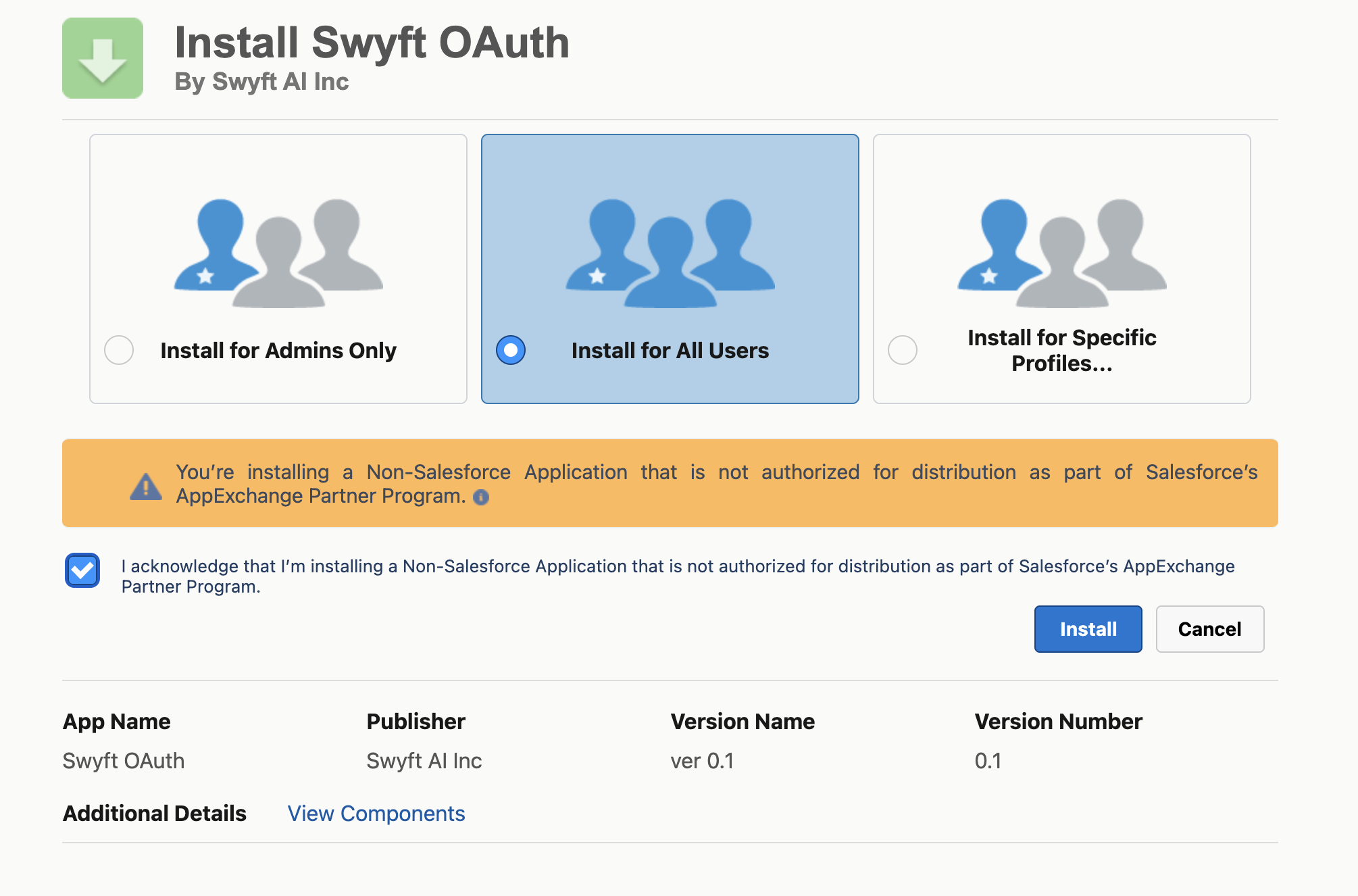
After installation completes, the administrator setup is finished.
2. Users connect Salesforce
Once the app has been installed, users can connect Salesforce to Swyft.
Go to the Swyft login page
Click Continue with Salesforce
Sign in to Salesforce if prompted
Approve access to Swyft
What happens after connecting?
Once connected, Swyft can securely interact with Salesforce on behalf of the user, enabling workflows such as:
Creating or updating CRM records from meetings
Automating Salesforce updates
Triggering workflows based on Salesforce activity
Syncing insights from customer conversations into Salesforce
Troubleshooting
"The Swyft app must be installed first"
If you see a message that the app must be installed:
Share the installation link with your Salesforce admin
Ask them to complete the install step
Install link: https://app.swyftai.com/salesforce/install